



My Account for business
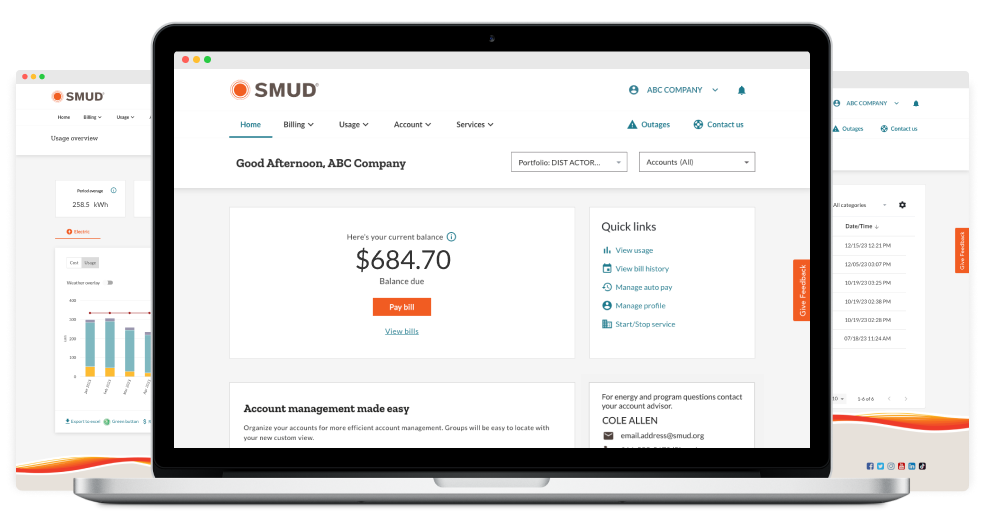
Our new and enhanced My Account includes updated tools and features to make doing business with us even easier.
Helpful features
Simplify your life with automated tools and energy savings tips.

Portfolios
In our updated My Account, you now have the ability to link multiple portfolios under one user profile. A portfolio is a set of one or more accounts. For more information on the topic of account management, visit our FAQ section below.
Adjust your bill due date to fit your needs
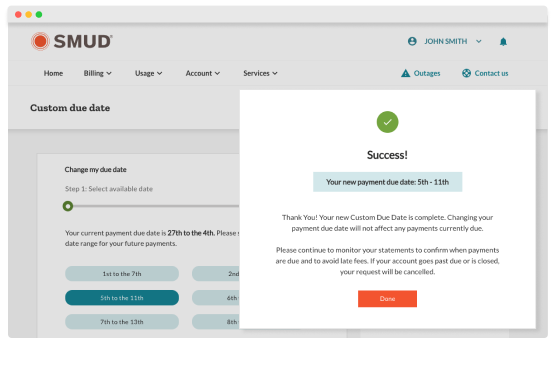
Take control of your billing schedule by choosing a custom due date range that's most convenient for your business. For more information on billing, visit our FAQ section below.
Your account features
Discover additional features that simplify your account management experience.
Payment arrangements
Online bill view
Secure messaging
Send a secure message to our customer support team and keep all of your messages in one spot. We'll quickly address any of your billing, payment or general account inquiries.
Dedicated advisor
Find contact details at the bottom right corner of the home page for your dedicated Strategic Account Advisor (SAA). They can help you save time, energy and money with specialized business programs and incentives.
Energy usage charts
See your energy usage in an easy-to-view chart. You can also compare costs and usage to prior billing periods.
Faster payments
Fewer steps help you make payments faster for one or multiple accounts.
Group your accounts
Group a subset of accounts and give others access to easily manage assigned groups.
Guest access
Add guests if you have multiple people who need to access shared accounts.

FAQs
Discover additional features that simplify your account management experience.
Will my login information change?
No, you'll keep your existing user ID and password. If you’re having trouble accessing your account, please contact us using the secure inbox feature or call 1-877-622-7683, Monday through Friday, 8 AM to 5 PM.
What should I do if I can’t access my account(s)?
We’re sorry you’re having trouble accessing your account.
Try the following tips:
- Disconnect from any virtual private network (VPN) you may be using and use only Wi-Fi or mobile data. Some VPNs may block or interfere with access.
- Try logging in from a different device such as your phone, tablet, or another computer.
- Clear your browser cache and cookies:
- For Chrome/Edge: Press Ctrl + Shift + Delete, select “All time,” and clear cache and cookies.
- For Safari: Go to Settings > Clear History and Website Data.
- After clearing your cache, close and reopen your browser and try to sign in again.
If you still cannot access your account after trying these steps, please contact us for help.
Why can’t I see all of my accounts?
Once you’re logged in, select the orange button labeled “Access my other accounts" that appears at the bottom of the account selection screen. That will redirect you to the new my account portal where you can view "Service accounts" under the "Accounts" dropdown in the top menu.
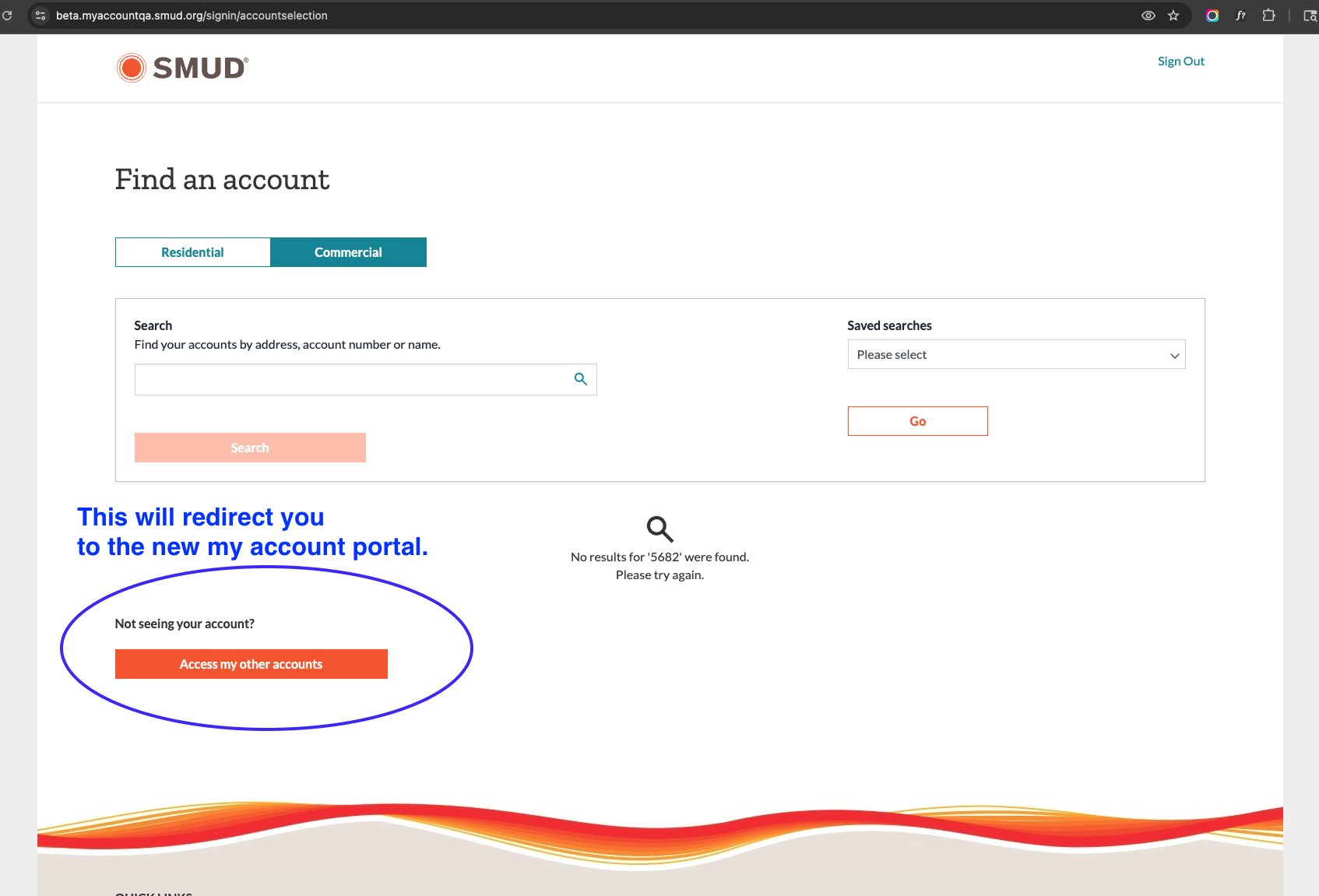
Once you're in the new my account portal there's two scenarios to review.
- Scenario 1: If you don’t see all your accounts, you may need to link existing accounts by adding a portfolio. A portfolio is a set of one of more accounts. Watch the video below for more about portfolios and accounts.
- Scenario 2: If you can't add a new account to your profile, you may need to be added as a guest by the account owner. You can reach out to the account owner to resolve the issue or contact us for additional assistance. The role of account owner can be reassigned by calling 1-877-622-7683
How can I identify the account owner?
First, check with individuals within your business or organization that might have account owner details. You can also contact customer service at 1-877-622-7683 for more information, or to reassign the role of account owner.
What's the difference between portfolios and grouping accounts?
- Portfolios: Gain access to multiple authorized business portfolios under one user profile by connecting account information.
- Grouping accounts: Group a subset of accounts and give others access to easily manage assigned groups.
What changes affect a My Account user profile that has multiple accounts?
First, identify your account owner. If you're the first to log in to the My Account profile, you'll be assigned as the account owner. The account owner can add guests and assign permissions. The role of account owner can be reassigned by calling 1-877-622-7683.
Will my payment methods be saved in My Account?
Yes, your previous saved billing and payment methods will carry over.
Will my auto bill pay payment information transfer to the new platform?
Yes, your automatic payments will remain active.
How do I make a payment using Apple Pay or Google Pay?
Apple Pay
- First, add your eligible cards to Apple Pay through your device’s system settings. For detailed instructions on setting up Apple Pay, visit Apple Pay support.
- Once your cards are added, sign in to My Account.
- Navigate to the Billing dropdown menu and select Payment methods.
- Select "+ Add payment method", then choose Apple Pay and go through the steps to save the payment method.
- After saving the payment method you can use it to make payments and setup auto bill pay.
Google Pay
- If you haven’t already added your payment method to your Google Account, visit Google Wallet to save the payment method you want to use.
- Afterward, sign in to My Account, navigate to the Billing dropdown menu and select Payment methods.
- Select "+ Add payment method", then select the Google logo and complete the steps to save the payment method.
- After saving the payment method you can use it to make payments and setup auto bill pay.
Your updated My Account is separate from your electric service. You won't experience any disruption to your electric service.
Why is SMUD making these updates?
While our current My Account has served us well, we're evolving to meet your needs. The updated My Account provides you with a seamless and efficient energy management experience. It ensures an innovative and customer-focused digital journey with room to expand on features that are important to our customers.
How can I report issues?
If you need help using the updated My Account, please contact us using the secure inbox feature or call 1-877-622-7683, Monday through Friday, 8 AM to 5 PM. You can also reach out to your Strategic Account Advisor (SAA).
How can I provide feedback about My Account?
We want to know what you think about the new tools and features in My Account. When you're logged in, select the feedback tab, on any My Account page. We value your opinion and use customer feedback to make future improvements.
Try the My Account enhanced experience
Log in today with your existing account info to see the new features available.