



My Account rau kev lag luam
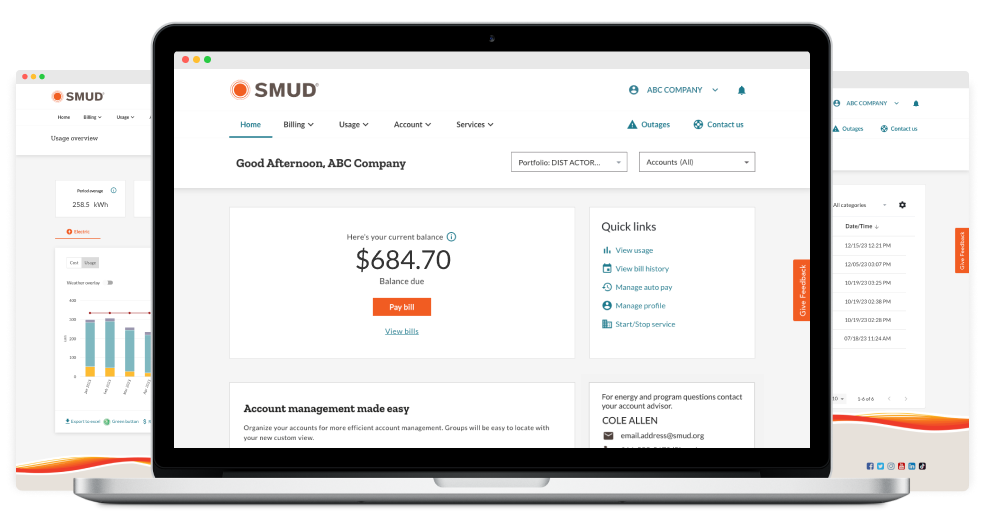
Peb cov tshiab thiab txhim kho My Account suav nrog cov cuab yeej tshiab thiab cov yam ntxwv los ua kev lag luam nrog peb yooj yim dua.
Pab tau nta
Ua kom yooj yim rau koj lub neej nrog cov cuab yeej siv hluav taws xob thiab cov lus qhia txuag hluav taws xob.

Cov ntaub ntawv
Hauv peb qhov hloov tshiab My Account, tam sim no koj muaj peev xwm txuas ntau cov ntaub ntawv hauv qab ib tus neeg siv profile. Ib daim ntawv pov thawj yog ib txheej ntawm ib lossis ntau tus account. Yog xav paub ntxiv txog lub ntsiab lus ntawm kev tswj hwm tus account, mus saib peb FAQ seem hauv qab no.
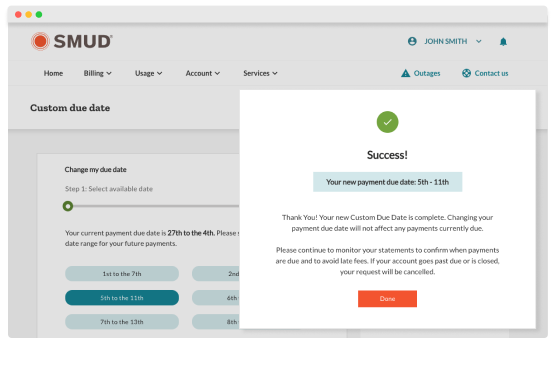
Kho koj daim nqi hnub kawg kom haum koj cov kev xav tau
Tswj koj lub sij hawm them nqi los ntawm kev xaiv qhov Custom Due Date range uas yooj yim tshaj rau koj txoj kev lag luam. Yog xav paub ntxiv txog kev them nqi, mus saib peb FAQ seem hauv qab no.
Koj tus account nta
Tshawb nrhiav cov yam ntxwv ntxiv uas ua kom yooj yim rau koj txoj kev tswj hwm tus account.
Kev npaj them nqi
Online daim nqi saib
Kev xa xov ruaj ntseg
Xa cov lus ruaj ntseg rau peb pab neeg txhawb nqa thiab khaws tag nrho koj cov lus hauv ib qho chaw. Peb mam li hais sai sai rau ib qho ntawm koj cov nqi them nqi, kev them nqi lossis cov lus nug hauv tus account.
Dedicated advisor
Nrhiav cov ntaub ntawv tiv tauj ntawm lub kaum sab xis hauv qab ntawm nplooj ntawv home rau koj Strategic Account Advisor Cuab (SAA). Lawv tuaj yeem pab koj txuag lub sijhawm, lub zog thiab nyiaj txiag nrog cov haujlwm tshwj xeeb hauv kev lag luam thiab kev txhawb siab.
Daim duab siv zog
Saib koj lub zog siv hauv daim ntawv qhia yooj yim-rau-saib. Koj tuaj yeem sib piv cov nqi thiab kev siv rau lub sijhawm ua ntej.
Kev them nyiaj sai dua
Cov kauj ruam tsawg dua yuav pab koj them nyiaj sai dua rau ib lossis ntau tus account.
Pab koj tus account
Pab pawg subset ntawm cov nyiaj thiab muab rau lwm tus kom yooj yim tswj cov pab pawg.
Guest nkag
Ntxiv cov qhua yog tias koj muaj ntau tus neeg uas xav tau nkag mus rau cov account sib koom.

FAQs
Tshawb nrhiav cov yam ntxwv ntxiv uas ua kom yooj yim rau koj txoj kev tswj hwm tus account.
Kuv tus ID nkag mus yuav hloov li cas?
Tsis yog, koj yuav khaws koj tus neeg siv ID thiab lo lus zais uas twb muaj lawm. Yog tias koj muaj teeb meem nkag mus rau koj tus as khauj, thov hu rau peb siv lub inbox ruaj ntseg lossis hu rau 1-877-622-7683, Monday txog Friday, 8 AM txog 5 PM.
Kuv yuav tsum ua li cas yog tias kuv nkag tsis tau rau hauv My Account(cov)?
Peb thov txim uas koj muaj teeb meem nkag mus rau koj tus account.
Sim cov lus qhia nram qab no:
- Txiav tawm ntawm txhua lub network virtual private network (VPN) uas koj siv thiab tsuas yog siv Wi-Fi lossis cov ntaub ntawv mobile xwb. Qee lub VPNs yuav thaiv lossis cuam tshuam kev nkag mus.
- Sim nkag mus rau hauv los ntawm lwm lub cuab yeej xws li koj lub xov tooj, ntsiav tshuaj, lossis lwm lub khoos phis tawj.
- Tshem koj lub browser cache thiab Cookies:
- Rau Chrome/Edge: Nias Ctrl + Shift + Delete, xaiv "Txhua lub sijhawm," thiab tshem tawm cov cache thiab Cookies.
- Rau Safari: Mus rau Chaw > Tshem Keeb Kwm thiab Cov Ntaub Ntawv Hauv Lub Vev Xaib.
- Tom qab koj rho tawm koj lub cache lawm, kaw thiab rov qhib koj lub browser thiab sim nkag mus dua.
Yog tias koj tseem tsis tuaj yeem nkag mus rau koj tus account tom qab sim cov kauj ruam no, thov hu rau peb kom tau kev pab.
Vim li cas kuv thiaj tsis pom tag nrho My Account?
Thaum koj nkag mus rau hauv lawm, xaiv lub pob txiv kab ntxwv uas muaj lub npe hu ua "Access my other accounts" uas tshwm sim rau hauv qab ntawm qhov screen xaiv account. Qhov ntawd yuav coj koj mus rau qhov My Account portal tshiab uas koj tuaj yeem saib "Service accounts" nyob rau hauv qab "Accounts" dropdown hauv cov ntawv qhia zaub mov sab saum toj.
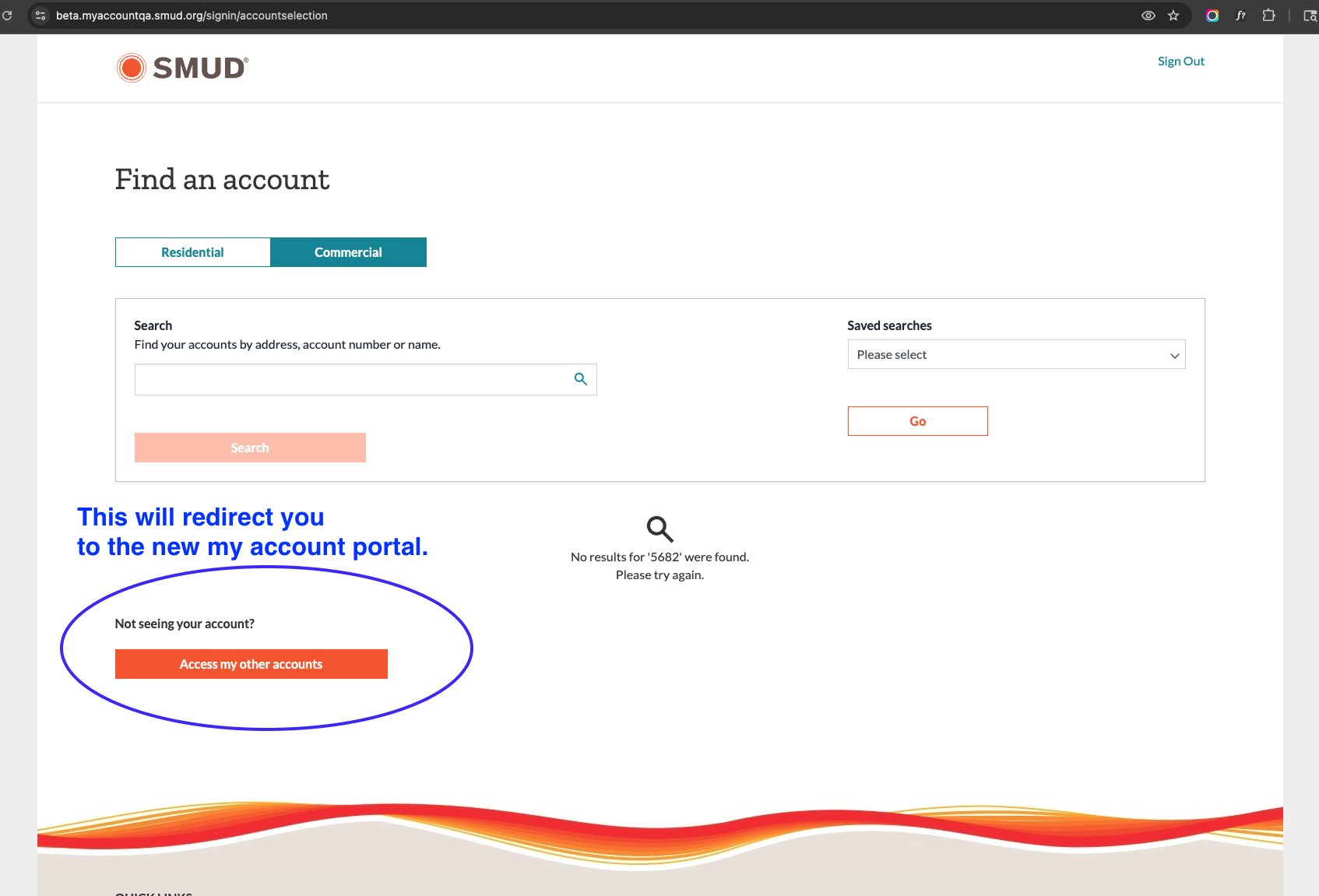
Thaum koj nyob hauv My Account portal tshiab lawm ces muaj ob qho xwm txheej uas yuav tau tshuaj xyuas.
- Xwm txheej 1: Yog tias koj tsis pom tag nrho koj cov nyiaj, tej zaum koj yuav tsum txuas cov nyiaj uas twb muaj lawm los ntawm kev ntxiv ib daim ntawv teev cov nyiaj. Ib daim ntawv teev cov nyiaj yog ib pawg ntawm ib qho ntawm ntau tus account. Saib cov yeeb yaj kiab hauv qab no kom paub ntxiv txog cov ntaub ntawv sau txog tus kheej thiab cov nyiaj.
- Xwm txheej 2: Yog tias koj ntxiv tsis tau ib tus account tshiab rau hauv koj qhov profile, tej zaum tus tswv account yuav tsum ntxiv koj ua ib tug qhua. Koj tuaj yeem tiv tauj tus tswv account kom daws qhov teeb meem lossis tiv tauj peb kom tau kev pab ntxiv. Lub luag haujlwm ntawm tus tswv nyiaj tuaj yeem raug xa rov qab los ntawm kev hu rau 1-877-622-7683
Kuv tuaj yeem txheeb xyuas tus tswv tus account li cas?
Ua ntej, nug cov tib neeg hauv koj lub lag luam lossis lub koom haum uas tej zaum yuav muaj cov ntaub ntawv ntawm tus tswv account. Koj tuaj yeem tiv tauj cov neeg ua haujlwm pabcuam cov neeg siv khoom ntawm 1-877-622-7683 kom paub ntau ntxiv, lossis kom rov muab lub luag haujlwm ntawm tus tswv nyiaj.
Dab tsi yog qhov txawv ntawm cov ntaub ntawv pov thawj thiab kev koom ua pawg nyiaj?
- Portfolios: Tau txais kev nkag mus rau ntau qhov kev tso cai ua lag luam portfolios nyob rau hauv ib tus neeg siv profile los ntawm kev sib txuas cov ntaub ntawv nyiaj txiag.
- Kev Pabcuam Cov Nyiaj Txiag: Pab pawg ib pawg ntawm cov nyiaj thiab muab rau lwm tus kom yooj yim tswj cov pab pawg.
Cov kev hloov pauv dab tsi cuam tshuam rau My Account tus neeg siv profile uas muaj ntau tus account?
Ua ntej, txheeb xyuas koj tus tswv account. Yog tias koj yog thawj tus nkag rau hauv My Account profile, koj yuav raug xaiv los ua tus tswv account. Tus tswv account tuaj yeem ntxiv cov qhua thiab tso cai. Lub luag haujlwm ntawm tus tswv tus account tuaj yeem raug muab rov qab los ntawm kev hu rau 1-877-622-7683.
Kuv txoj kev them nyiaj puas yuav raug cawm hauv Kuv Tus Account?
Yog, koj cov kev them nqi thiab kev them nyiaj uas tau khaws cia ua ntej yuav siv tau.
Puas yog kuv daim nqi pib them cov ntaub ntawv them nqi hloov mus rau lub platform tshiab?
Yog, koj cov nyiaj them tsis siv neeg yuav tseem ua haujlwm.
Kuv yuav ua li cas them nyiaj siv Apple Pay lossis Google Pay?
Kua Them Nyiaj
- Ua ntej, ntxiv koj daim npav tsim nyog rau Apple Pay los ntawm koj lub cuab yeej lub system settings. Yog xav paub ntxiv txog kev teeb tsa Apple Pay, mus saib Apple Pay support.
- Thaum koj cov daim npav raug ntxiv lawm, nkag mus rau hauv My Account.
- Mus rau ntawm daim ntawv qhia zaub mov nco-down ntawm Daim Ntawv Them Nqi thiab xaiv cov txheej txheem them nqi.
- Xaiv "+ Ntxiv txoj kev them nyiaj", tom qab ntawd xaiv Apple Pay thiab ua raws li cov kauj ruam los txuag txoj kev them nyiaj.
- Tom qab koj txuag tau txoj kev them nqi lawm ces koj siv tau nws los them nqi thiab teeb tsa kev them nqi tsis siv neeg.
Google Them
- Yog tias koj tseem tsis tau ntxiv koj txoj kev them nyiaj rau hauv koj tus account Google, mus saib Google Wallet kom txuag tau txoj kev them nyiaj uas koj xav siv.
- Tom qab ntawd, nkag mus rau hauv My Account, mus rau cov ntawv qhia zaub mov Billing thiab xaiv Cov Txheej Txheem Them Nyiaj.
- Xaiv "+ Ntxiv txoj kev them nyiaj", tom qab ntawd xaiv lub logo Google thiab ua kom tiav cov kauj ruam los txuag txoj kev them nyiaj.
- Tom qab koj txuag tau txoj kev them nqi lawm ces koj siv tau nws los them nqi thiab teeb tsa kev them nqi tsis siv neeg.
Koj qhov hloov tshiab My Account yog cais los ntawm koj qhov kev pabcuam hluav taws xob. Koj yuav tsis muaj kev cuam tshuam rau koj qhov kev pabcuam hluav taws xob.
Vim li cas SMUD ua cov hloov tshiab no?
Thaum peb tam sim no My Account tau pab peb zoo, peb tab tom hloov kho kom tau raws li koj xav tau. Qhov hloov tshiab My Account muab rau koj nrog kev tswj hwm lub zog tsis muaj zog thiab muaj txiaj ntsig zoo. Nws ua kom muaj lub tswv yim tshiab thiab cov neeg siv khoom tsom mus rau digital nrog chav los nthuav dav cov yam ntxwv tseem ceeb rau peb cov neeg siv khoom.
Kuv tuaj yeem tshaj tawm cov teeb meem li cas?
Yog tias koj xav tau kev pab siv My Account tshiab, thov hu rau peb siv lub inbox ruaj ntseg los yog hu rau 1-877-622-7683, Monday txog Friday, 8 AM txog 5 PM. Koj tseem tuaj yeem hu rau koj Strategic Account Advisor (SAA).
Kuv tuaj yeem muab cov lus teb li cas txog My Account?
Peb xav paub seb koj xav li cas txog cov cuab yeej tshiab thiab cov yam ntxwv hauv My Account. Thaum koj nkag rau hauv, xaiv cov lus qhia tab, ntawm nplooj ntawv My Account . Peb saib xyuas koj qhov kev xav thiab siv cov lus teb rau cov neeg siv khoom los txhim kho yav tom ntej.
Sim ua qhov kev paub dhau los ntawm My Account
Nkag mus rau hnub no nrog koj cov ntaub ntawv tus lej uas twb muaj lawm kom pom cov yam ntxwv tshiab muaj.